Retro Handheld Custom Firmware: muOS, KNULLI, ROCKNIX & More
Custom firmware (CFW) is the community-made software that often defines a retro handheld more than its hardware. This is a plain directory of the major options and where each one fits.
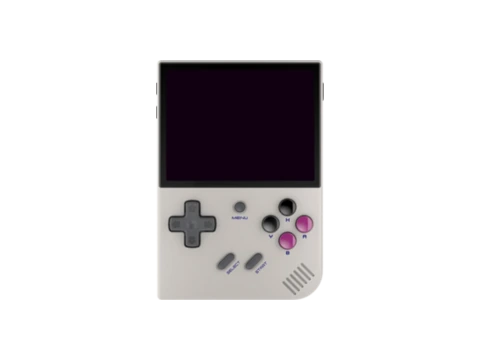
What custom firmware is
CFW replaces or supplements the stock operating system with a community build that typically bundles better-tuned emulators, a cleaner front-end, more features (box art, save states, scraping) and active updates. On most Linux handhelds it runs from the SD card, so trying one is low-risk. See how to flash it.
The major Linux firmwares
- muOS — clean, fast and beginner-friendly; very popular on Allwinner H700 devices like the Anbernic RG35XX family. A common first recommendation.
- KNULLI — successor to the Batocera-based CFOS lineage; broad device support and a polished setup, widely recommended for newer Anbernic units.
- ROCKNIX — community continuation for Rockchip and RK-based devices; stable and frequently updated (evolved from the JELOS lineage).
- ArkOS — a long-standing, reliable choice for many Rockchip RK3326/RK3566 handhelds.
- JELOS / AmberELEC / EmuELEC — established EmulationStation-based builds; AmberELEC is well known on the RG351/RG503-era Anbernics.
- Batocera — big, feature-rich, runs on everything from handhelds to PCs; heavier but extremely capable.
Device-specific firmwares
- OnionOS — the beloved CFW for the Miyoo Mini / Mini Plus; turned a cheap device into a community darling.
- Spruce — popular community firmware for Trimui devices such as the Smart Pro and Brick.
- GarlicOS — historically big on the RG35XX (2022), now largely superseded by muOS/KNULLI on newer hardware.
How to choose
Start from your device, not the firmware: each CFW supports a specific set of chips and models. Look up your handheld on its HandheldWiki page or browse by chip, then check which firmwares list official support for it. For most newcomers on a current Anbernic, muOS or KNULLI are the easy answers; Miyoo Mini owners want OnionOS; Trimui owners look at Spruce. Always follow the firmware project's own install docs for your exact model.
Android and PC handhelds
Android devices (many Retroid, AYN and higher-end units) don't use this Linux CFW scene the same way — you install individual emulator apps and a front-end instead. PC handhelds run Windows or SteamOS and use desktop emulators. This directory is aimed at the Linux retro handhelds where CFW is the norm.
Frequently asked questions
What is the best custom firmware for a beginner?
On a current Anbernic, muOS or KNULLI are the most beginner-friendly. Miyoo Mini owners should use OnionOS; Trimui owners look at Spruce. Always confirm the firmware officially supports your exact model.
Is custom firmware legal?
The firmware itself is community-made software and is generally fine to install. HandheldWiki does not host or link to firmware, games or BIOS files — get firmware from each project's official source.
Does custom firmware void my warranty or risk my device?
SD-card firmware is reversible and low-risk on most Linux handhelds. It can affect warranty depending on the maker. See the firmware flashing guide for safe practice.